

Are you confused about a redirect? Perhaps you have removed a post on your blog and are concerned that people will get a Page Not Found error. Or maybe you renamed a page, and you are just checking that the new page is visible on Google and to the whole world. If that’s the case, learning how to redirect a page or post in WordPress is exactly what you need.
In case that is what you were thinking, you need not worry. You’re in the right place. We will run this on a step-by-step basis, using simple language. Consider me a friend who is standing beside you, as he points to the screen. At the end of it, you will be able to set up redirects.
Let’s see why this matters. Whenever a person clicks a link to your Site, you want him or her to get to the appropriate page. What if that page is gone?
- People may go off your site immediately. Bounce rates may go as high as 90% when a user encounters a 404 error of Page Not Found. They just give up and go.
- It isn’t only visitors. The crawlers of Google also become confused. The redirecting of old links may cost your site some ranking power. However, now Google says that a 301 redirect transfers all the said value. And when you do it right, you lose nothing.
- Millions of sites on WordPress are supported by over 43 percent of the web. This is a common task. It is not just you who needs help.
- Broken links can be fixed to provide a huge lift. According to a study, their discovery and repair, typically through redirects, is a big boost to the visibility and traffic of a site.
Therefore, establishing a redirect is not only technological. It is all about taking care of your visitors and ensuring that Google is pleased by what you have created.
Ready to learn? Let’s go!
What is a Redirect and What is The Purpose?
First, what is a redirect?
Let’s use a real example. Suppose you have changed your dwelling place. You don’t just vanish. You take yourself to the post office and complete a mail forwarding form. The form informs the post office that if mail addressed to me is received at my former address (123 Old Street), it will automatically be sent to my new address (456 New Avenue).
The same happens with a redirect to a website.
It is a plain-text, under-the-hood request that is sent to the web server and the user’s browser. It tells you, I know you were after my old blog post, but it has gone. Instead, please refer the visitor and the search engines to /my-new-and-better-post. Thanks!”
It does not require the visitor to do anything. They press the old link, and they are at the new page, and often, they are unaware of it.
The Two Most Common Types: 301 vs. 302
The 301 Redirect (The “We have moved permanently) Form
This is the most widespread and significant one. The code 301 is an indication of a Moved Permanently. A 301 will work when you are certain that the move is permanent.
- You have just deleted a previous post and made a better one to replace it.
- You changed a page’s link (slug). Indicatively, /about-our-team as opposed to /about.
- You are transferring all your content from myoldsite.com to mynewsite.com.
What is the importance of this to SEO?
By using a 301, you are telling Google, “All the trust, popularity points, and rankings that you had with the old page, would you kindly transfer it to this new page? The old page is gone for good.”
Google says, “Got it! Moving all of it.” In Google, 100% of the value is transferred.
The 302 Redirect (The We Two Notice)
Code 302 is an indication that it was found or temporarily moved.
- It is as if you left a note that says, Gone to the neighbour’s house. I’ll be back in an hour.”
- You are using 302 redirects in case the move is not permanent.
- You have a special sale on and wish to make your /shop page go to /big-sale during one weekend. On Monday, you will withdraw the redirect.
- You are working on the page, and you do not want people to know that you are busy updating a page, and you want them to visit another one that you have called the coming soon page, which will only last a few hours.
You have a new page design that you would like to test out and temporarily transfer some traffic to it.
Suggested Read: Best Open Source SEO Tools
Why is this different for SEO?
A 302 reflects the search engine to temporarily redirect the audience, temporarily, to a different page, yet retain the original page in the search results, and retain its ranking.
- Beginning tip: Make nearly all 301 redirects. In case of doubt, use a 301, it preserves your Google standings.
Why is this about WordPress? WordPress is straightforward to create, edit, and delete content, and this is good, but it may also leave broken links behind.
Redirects in WordPress. When you have to redirect users to a new post, you redirect to a new post or your home page when you delete a post or page, to avoid a 404 error page.
- When you change a permalink (e.g., the name that follows the final /), the previous link is broken. WordPress can make a guess and a redirect, but a 301 redirect can be created manually, which ensures success.
- There are two methods to do this: the first is to combine two posts into one and delete the old posts, then redirect the URLs to the new article.
- In case you are shifting to a new domain, do install redirects in all the pages.
- In case an affiliate link is changed, it can be redirected in one location rather than changing each post.
Concisely, redirects ensure that your site remains healthy, users are happy, and Google is happy.
Redirecting a Page or Post in WordPress Without a Plug-in
Caution: You will make changes to the code of your site. It is strong, but still, when you commit an error, you may temporarily destroy your site. Having done this, back up your site first. Copy the file, which will be edited, to the text file named my Site backup.txt to be able to restore it in case of necessity.
It is in the case of people who wish to take the riskier approach. Otherwise, go to the section of the plugin.
A. Using WordPress PHP function
It can be used in your functions.php file: Every WordPress theme includes a functions.php file, as a cookbook, with little recipes that instruct WordPress on how to behave.
It is possible to insert a little recipe to send a page to the right.
Step 1: Find your functions.php file in your wordpress dashboard.
Appearance is located in the left menu.
- Click Theme File Editor.
- There will be a warning message, read and click I understand.
- Theme Functions (functions.php) is located on the right and should be clicked on.
Step 2: Add the code snippet.
Go to the bottom of the file and create a new recipe. As an example, the redirect is redirecting http: mysite.com/ old-page to http: mysite.com/ new-page.
Step 3: Modify the code.
Change the three options:
- my_awesome_redirect You have to give it a new name and update both of these locations.
- Old-page You have to use the full URL of the page you want to redirect to, and you may include either a http: or a https: in the path.
Step 4: Save the File.
On the bottom, there is a blue button, which is called Update File.
How does this work?
- Additional actions are added in the format: add_action( ‘template redirect’,… ): WordPress: Before you display a page, execute my code.
- You have a function my_awesome_redirect which is as follows.
- Then: if ( is_page(old-page) ) This would be to verify that the visitor is browsing an old page.
- wp_redirect( $new_url, 301);: In that case, this code directs the visitor to the new URL permanently.
So to avoid WordPress doing anything further, such as loading the old page, you can simply stop it with: exit;
It is a practical approach, but very disorganised when you have a good amount of redirects.
B. With the help of Your Server Rules (.htaccess or Nginx).
This is more powerful and faster, and can cause a breakdown of your Site if you go wrong.
The rules are executed prior to the loading of WordPress, and hence, it is like a bouncer checking the visitors prior to entering the restaurant.
Which server do I have?
Most hosts use Apache, and its hidden file is called. htaccess.
There are some more recent hosts configured with Nginx that operate on a .conf file.
We will consider .htaccess as it is most prevalent.
Step 1: Find your .htaccess file.
It can not be viewed on WordPress. Get access to your hosting control panel (commonly cPanel) or connect to an FTP program such as FileZilla.
- 1. Log in to cPanel.
- 2. Click “File Manager.”
- 3. Browse to your public-html folder, which is where the leading Site is.
- 4. In case you do not find .htaccess then it is hidden. Ensure that you click on Settings, in the top right of the file Manager, and that you select Show Hidden Files (dotfiles).
- 5. You should now see .htaccess. Click on it with the right-hand button and select edit.
Step 2: Add your redirect rule.
You will find the code that begins with the word BEGIN WordPress and ends with the word END WordPress.
- Touch that WordPress code and touch it not.
- Add your rules above it.
- Example syntax: Redirect 301 /old-page /new-page
It is to permanently redirect an old page to a new one i.e. a 301 redirect from old-page to new-page.
Provide the complete URL: in case the new page is located on a different site.
301 /my-product-review https://www.amazon.com/some-product-link.
Step 3: Save the file.
Click “Save Changes.”
Test it right away. The web browser opens a second private window.
- Enter the old page of the site by typing: http://mysite.com/ old-page.
- You are redirected to MySite.com/ new-page.
- When you get a 500 Internal Server Error, something is wrong. Rolling back the change, trying it again by restoring your backup.
- The .htaccess technique will allow you to insert numerous redirects in a short period of time and will keep your site functional and uncluttered.
Step-by-Step Guide: Using the “Redirection” Plugin
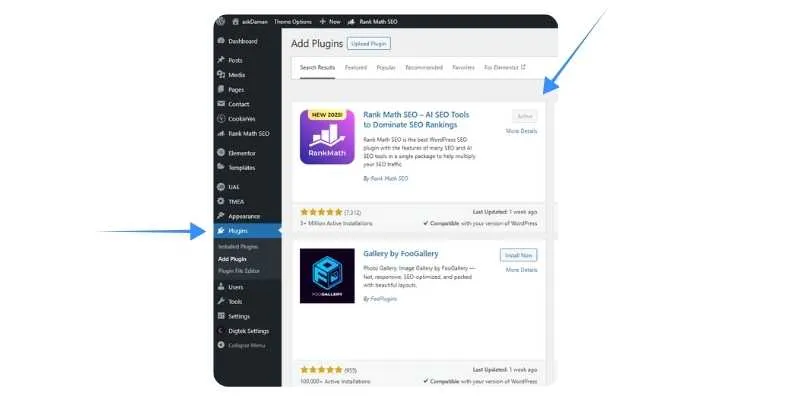
Step 1: The first step is to install and activate the Plugin.
1. On the left-hand menu in your WordPress dashboard, find the menu titled: Appearance.
2. Move the cursor to Plugins (the icon located with a small plug). And add & Activate an SEO Plugin. E. Rank Math.
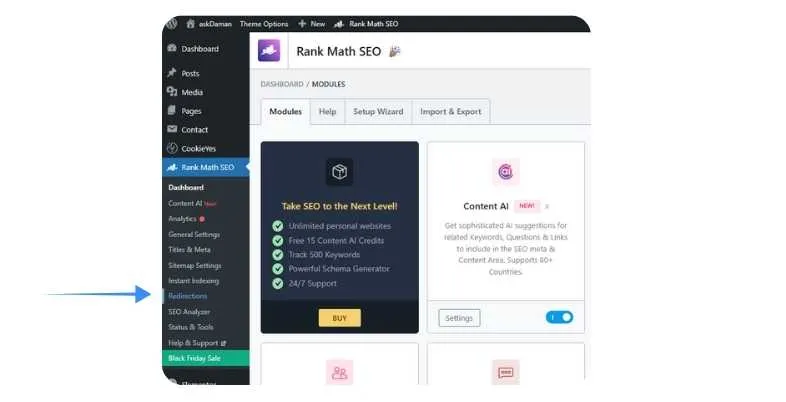
3. Visit the Redirection Option.
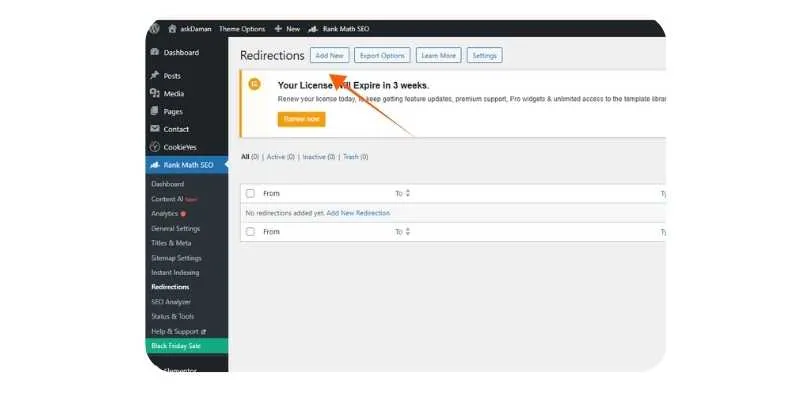
4. Click on Add New Redirection.
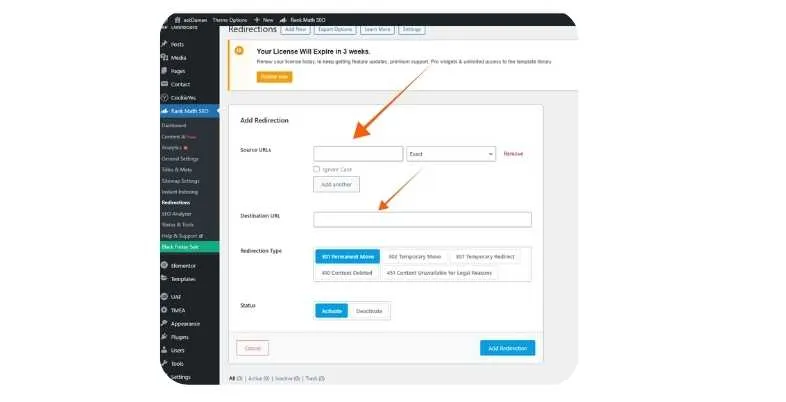
5. Fill in all your details. And Click On Save.
- Source URL: the old link.
- Target URL: the new link.
Entering the box for adding a new redirection:
- The final section of the old link is to be typed in the Source field: /my-blog-post.
- The complete new link will be typed in the Target field: mysite.com/the-ultimate-guide-to-blogging.
(You may also type the address only when it is on the same page)
- Select the gear icon that follows the redirection addition.
- Leave “Match” as “URL only.”
- Select the HTTP code: leave the default 301 -Moved Permanently. In case of a temporary redirect, 302 should be used.
- Press the blue Add Redirect button.
This redirect has now been added to the top of the page. It displays both the URL of origin and the URL of destination, and a green check mark that indicates that it is a 301 redirect.
- Click on a new Incognito or Privacy window.
- Type the URL of the old: mysite.com/my-blog-post.
- Press Enter.
- You are supposed to go directly to mysite.com, the ultimate guide to blogging.
Additional redirects can be added. You can edit and delete them and see the number of clicks each of them has.
Particular Use-Cases You May Require
1. How to Redirect Your homepage to another page.
In the case of the new site, and your home page is not prepared, you may wish to redirect the visitors of http://mysite.com to a third page, say the About page of http://mysite.com/about.
Using the plugin:
This is an exception since the URL of the homepage is a single slash only (/).
- Go to Tools → Redirection.
- In “Add new redirection”:
- Source URL: type /
- Name of target URL: enter about.
- Click Add Redirect.
Anybody who clicks on your top site will now be redirected to the About page. You can delete this redirect when you complete your new home page.
Another built-in option of WordPress is a permanent homepage. Go to Settings → Reading.
Switch Your latest posts to Your homepage to A static page.
Next select your About page on the dropdown Homepage. This is best if it’s permanent. The redirect technique is suitable in a temporary change.
2. How to Redirect to an External URL (like an Affiliate Link)
My favourite camera is the one that I have reviewed. I now would like to have a clean link on my site that directs people to my Amazon affiliate link. I would like to have the redirection of http://mysite.com/camera to https://www.amazon.com/your-long-affiliate-link-123. This is referred to as link cloaking and long links become simple to read and handle.
How to do it (with the plugin):
- Go to Tools → Redirection.
- Under the screen add new redirection:
- For Source URL type /camera.
- In the Target URL, insert the entire Amazon.
- To access options, click the gear ⚙️ icon.
- Select the type as 302 (Moved Temporarily) to allow the modifications to the Amazon link.
- Click Add Redirect.
Now I am able to say to the readers: Check out my favorite camera at mysite.com/camera! It appears simple and uncomplicated.
3. Restoring a permalink that has been altered (the “Oops” fix)
When I make a rewrite of a post, the previous URL is altered. Had I scanned Monitor permalink settings in the plug-in, it would have configured the redirect automatically. However, otherwise, I do it by hand.
- 1. Go to Tools → Redirection.
- 2. Source URL: /post-number-12.
- 3. Target URL: mysite.com/bake-a-cake.
- 4. Use 301.
- 5. Click Add Redirect.
Conclusion: That’s it! It’s no big deal.
See, redirects aren’t scary. It is simply mail forwarding to your site.
Recap:
- Redirect, this is an automatic sending of old links to new ones.
- It prevents the users from viewing 404 errors and makes Google happy.
- Use a 301 for permanent moves.
- Use a 302 for temporary moves.
- Writing code is dangerous because it requires beginners to write it.
- The most secure is the Redirection plugin, which displays an uncomplicated from/to list.
You are now prepared to take over your site. Old material should be removed, links changed around, and your SEO will remain fine without problems. If you want a hands-on approach, learning how to redirect a page or post in WordPress is key. Install the Redirection plugin, choose a post you no longer like, write another one, and add a 301 redirect. You’ll feel like a pro in no time.
FAQs
1. What is a 301 redirect?
It informs browsers and Google that a page has been permanently relocated to a new address and all the traffic and SEO value is retained.
2. Plugin or code?
Most users can use a safer and easier-to-use plugin.
3. Will redirects hurt SEO?
No. Some codes that maintain SEO well are proper 301s; improper redirects lead to errors of 404s.
4. How to test a redirect?
Open a new window or an incognito window and enter the previous URL and check whether you have been redirected to the new page.
