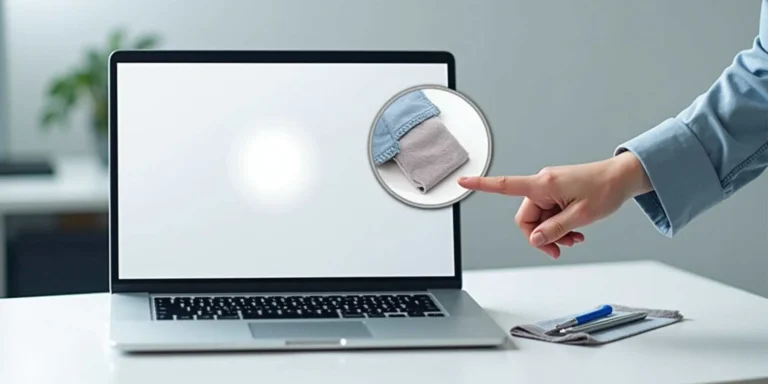
Is there a strange white spot that has suddenly appeared on the screen of your laptop and you cannot remove it? You are not the only one, this is among the most frustrating display problems laptop users experience in the year 2026. Whether you’re a student, a remote worker, or a casual user, a white spot on your screen can be incredibly disruptive to your daily routine and ruin your visual experience.
The good news? All white spots do not imply that your laptop has died. Most of these problems can be diagnosed and even rectified at home with the proper method. Throughout this comprehensive tutorial, you will learn all you must know about fixing the white spot on your laptop screen, including the underlying cause and some real-world step-by-step methods of how to fix the white spot on the laptop screen.
What Are White Spots on a Laptop Screen?

Laptop white spots are white discoloured spots on the screen that show up on the monitor, which usually resemble light coming through or a bleached-out section of the panel. They may be as small as pin-point spots or as large as blotchy spots, and can appear at boot-up, during use, or in a few case-specific colors.
These specks are normally due to physical, hardware, or software-related problems in the display system. To know how to fix white spot on laptop screen, you need to first of all know what you are talking about, not all white spots are the same and each one needs a unique solution.
What Causes White Spots on Laptop Screens?
It is best to know what causes these spots to occur before leaping into fixes. The top five most common causes are:
1. Pressure Damage (Most Common)
Damage caused by pressure is when an object presses against the screen – such as closing a pen lid or placing heavy items at the top. This literally cracks the LCD layer below the glass, causing light to scatter in that region and forming an irreparable white spot if not countermeasured. It is the most popular query that users look up on how to fix white spot on laptop screen.
2. Stuck or Dead Pixels
A stuck pixel is a pixel that becomes permanently fixed in a white or otherwise bright state and will not change. Stuck pixels are always glowing, as opposed to dead pixels (which appear black). They are generally small, yet quite conspicuous, particularly on dark grounds. They can be sometimes revived with software-based pixel-fixing tools.
3. Backlight Bleeding / LED Issues
Laptops now incorporate LED backlights to light up the screen. When the backlight is damaged, out of place or old, it may result in unequal light distribution – creating bright white spots around the edges or corners. This is also referred to as backlight bleeding and is an issue at the hardware level.
4. Dust, Moisture, or Liquid Damage
Even a drop of liquid or moisture can travel in-between the screen layers and leave white or cloudy spots. Light can also be abnormally refracted by dust particles trapped under the display glass to cause bright spots. This is enhanced by humidity in stuffy places over time.
5. Screen Aging or Hardware Failure
Laptop screens just like any other electronic part deteriorate. The internal materials break down to either cause dead zones, change color, or form white spots, depending on the aging of the panel. In the case of older laptops (4+ years) hardware failure is a viable factor which can eventually lead to the need to change the entire screen.
How to Diagnose the Problem
It is important to diagnose your screen problem before trying to find any solution. Here’s a quick checklist:
- Examine the position of the spot: Edge spots are frequently a sign of backlight bleeding; center spots can be a sign of pressure or pixel damage.
- Examine the spot size and shape: Small round dots are typically stuck pixels; asymmetrical blotches are often damage caused by pressure or liquid.
- Test on solid white and black ground: Open a blank document or colour test page so the spot can be better viewed.
- Determine whether the spot is moving: When the spot changes with your viewing angle, this can be a reflection problem or a surface problem and not a display problem.
- Relate to an external display: When an external display is perfect, the problem is certainly with the laptop physical screen.
- Watch out of any recent impact or spills: Small bumps or even small spills around the screen can be the culprit.
- Note the time it first appears: When the spot first appears after the screen has warmed up, then probably it is an aging problem with the hardware.
- Test online Mouse: Use a pixel-check utility on the Internet: Dead Pixels Test and others can pin-point stuck or dead pixels.
How to Fix White Spots on Laptop Screen (Step-by-Step) – 2026 Guide
We are now ready to get to the solutions. The following is a full tutorial on how to fix white spot on laptop screen, in order of difficulty:
Fix 1: Clean the Screen Properly
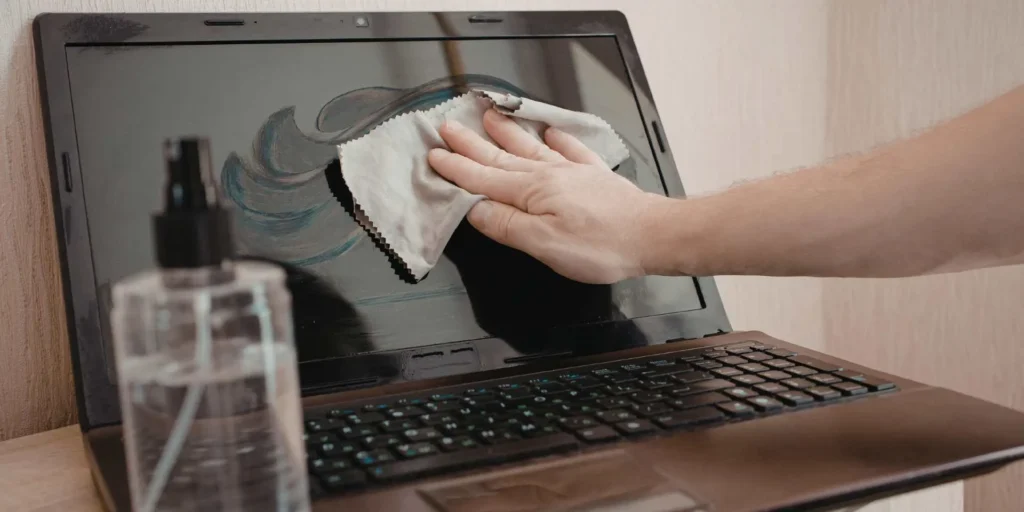
In some cases the apparent white spot is merely dirt, smudge or something left on the surface of the screen.
Surface white spots that do not display damage are removable through a thorough, soft cleaning. Always wash your screen and only proceed with a more invasive approach.
Steps:
- Shut the laptop and take out the plug.
- Clean with a microfiber cloth (do not use paper towels or coarse cloth)
- Wipe down with a bit of distilled water or a cleaning agent that is screen safe.
- Wipe off in soft circles, do not press hard.
- Wait till the screen is completely dry before switching it on.
- When the spot is there, then it is a more serious problem – go to the next fix.
Fix 2: Fix Stuck Pixels
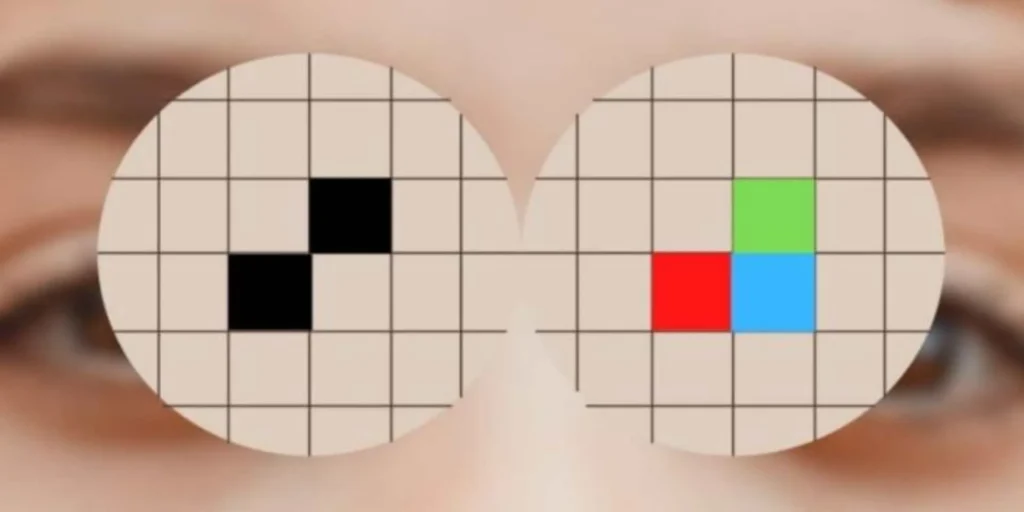
One of the most frequent causes of white spots that can be corrected is stuck pixels.
In some cases, stuck pixels can be unstuck by running software which rapidly flashes colors over the affected pixel, in effect, shocking the pixel into operation.
Steps:
- Go to a free online tool, such as JScreenFix, or install PixelHealer.
- View the animation of fixing the pixels over the white area and run it between 10 minutes and 30 minutes.
- The tool is used to flash RGB colors very quickly to unfreeze the stuck pixel.
- Dot it twice or thrice.
- Dark background check outcomes at the conclusion of each session.
- When the pixel really is dead (not stuck) it cannot be repaired by software.
Fix 3: Gently Massage the Area (Risky)
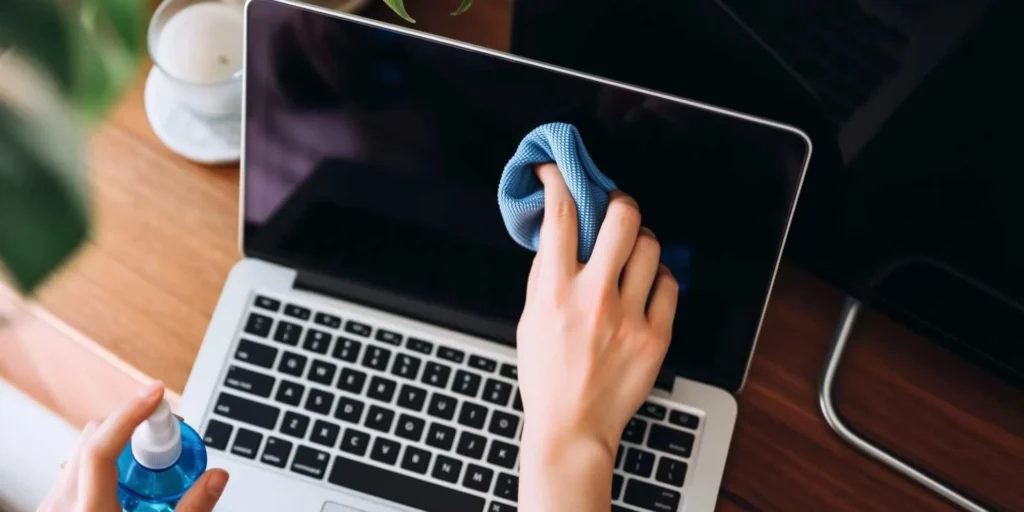
The technique is effective in areas of pressure related white spots where there has been slight displacement of the LCD.
Very gentle pressure has the potential to sometimes rearrange the liquid crystal layer beneath the panel. This is a dangerous move though, excessive pressure could worsen the situation or even break the screen.
Steps:
- Shut down the laptop.
- Cover the affected part with a soft cloth.
- Apply a circular force using the finger (not a nail) and very gently.
- Lightly rubbish 10-20 seconds and release.
- Restart the laptop and see whether the spot has decreased.
- Stop as soon as the spot increases or new spots are formed.
Fix 4: Update Graphics Drivers
Obsolete or damaged graphics drivers may occasionally result in display abnormalities such as bright points or areas.
The most important thing is to keep your GPU drivers up to date, so that your display hardware is properly talking to your operating system, and your computer is not causing visual glitches through software.
Steps:
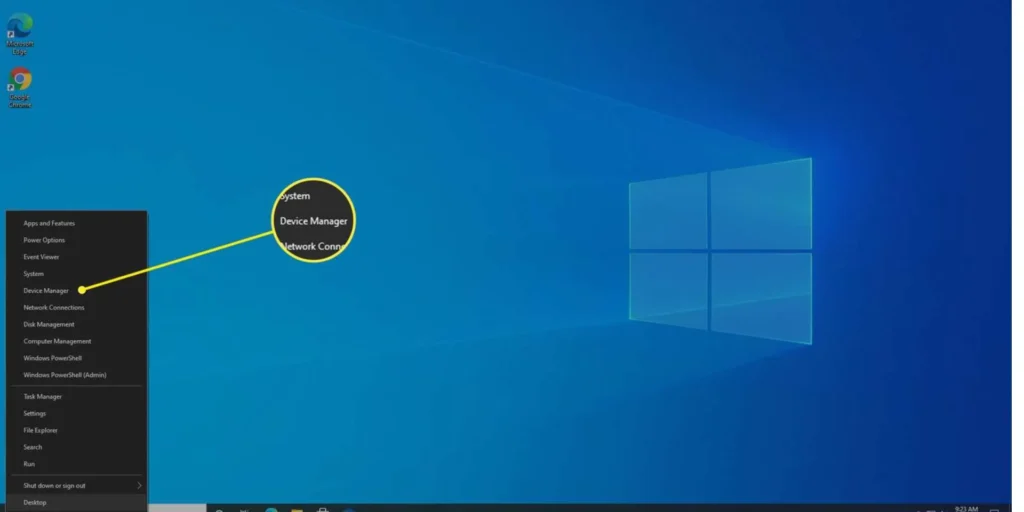
- Right-click on the Start menu and open the device manager.
- Click on your display adapters and right click your GPU.
- Update Driver Select Update Driver Search Automatically.
- Alternatively, go to the manufacturer site (NVIDIA, AMD or Intel).
- Get the most recent driver and install it in your system.
- Turn on your laptop again and see whether the white spot has gotten better.
Fix 5: Check for Backlight Issues
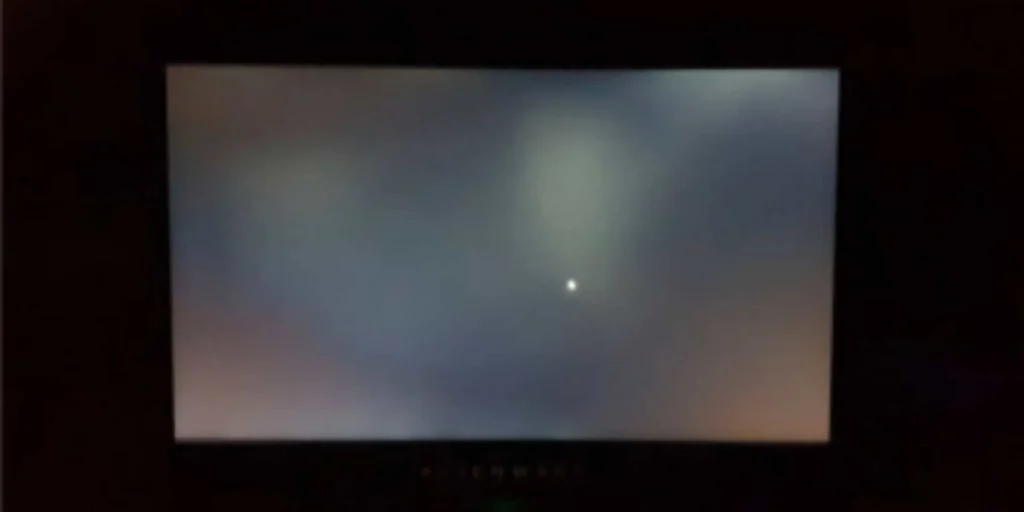
When the white spot is close to the screen edge and appears as light bleeding into the screen, then a possibility is that it is backlight bleeding.
Backlight problems are hardware issues, however changing screen brightness and display options can reduce the visual effect of it – therefore it will not be conspicuous in everyday life.
Steps:
- Turn the brightness of your screen down to 60-70% – this minimizes the intensity of bleed.
- Go to Display Settings and set the contrast down (when possible).
- Turn on night mode or warm-tone mode to diffuse backlight.
- See whether your laptop has any display calibration tools in settings.
- In case of extreme backlight bleed, it will only be fixed by replacing the screen permanently.
- It can help to use a matte screen protector to visualize light leakage.
Fix 6: Screen Replacement (Last Option)
In the event that all other methods of how to fix white spot on laptop screen are not effective, the final way of resolving the problem would be a complete replacement of the screen.
When the white spot is attributed to a physical damage, dead pixel, or extreme backlight failure, the only long-term solution is to replace the screen panel. It may be professionally done or in a Do-It-Yourself fashion.
Steps:
- How do you know your model and screen size/resolution of your exact laptop?
- Find a suitable replacement screen panel on the Internet (Amazon, eBay, iFixit).
- The cost is between, on average, $40 and 200, which varies according to the brand of your laptop.
- View a model-specific replacement video on YouTube and then give DIY a try.
- Disassemble the display by using a screen opening tool kit.
- You can also move it to a certified repair technician in case you are not certain.
Can White Spots Be Fixed Without Replacing Screen?
Yes, in most instances, you can most certainly learn how to fix white spot on laptop screen without a complete replacement. When it is a stuck pixel that causes the white spot, software such as JScreenFix or PixelHealer is very successful. Dust or surface grime could be cleaned with a good cleaning. Less severe pressure spots can also be alleviated by massaging.
Brightness adjustments as well as settings adjustments can help reduce even the backlight problems. But with a broken panel, severe liquid infiltration, or a broken backlight, it is inevitable that screen replacement is necessary. When hardware repairs cost money, always attempt the non-invasive fixes first.
How Much Does It Cost to Fix?
- Stuck pixel fix (software): Free with web apps available online, such as JScreenFix.
- Washing of screens: Free to $15 (microfiber cloth + cleaning solution)
- Screen panel replacement (DIY): $40- $200 based on the model and brand of laptop.
- Professional service repair: $100-350 with labor and parts.
- Manufacturer warranty repair: Free with qualifying damage to the laptop under warranty.
- Graphics driver update: 100% free either by using Device Manager or the manufacturer’s site.
How to Prevent White Spots
- Carry a laptop bag or sleeve: You should always carry your laptop in a padded and protective sleeve to avoid damage by pressure and impact.
- Do not place anything on the closed lid: Books, chargers, or heavy objects pressed against the lid can cause the screen to be damaged by the pressure.
- Liquids: Do not keep liquids near your laptop to avoid waterproofing.
- Extreme temperatures should be avoided: Heat and humidity will destroy screen material very fast; store and use your laptop in cool, dry places.
- Wipe the screen down with a microfiber cloth: wipe dust and smudges off with the cloth; do not use strong chemicals.
- Closing the lid: Do not drop the lid on any cables, earphones, or other objects between the screen and the keyboard.
Conclusion
White spots in a laptop screen may be frightening but not necessarily the end of the world. The key to understanding how to fix white spot on laptop screen, as this 2026 guide has revealed, lies in determining the underlying cause of the problem, which can be in the form of a stuck pixel, pressure damage, backlight problem, or even a basic surface dirt.
Begin with basic solutions such as cleaning and driver updates and then proceed to more advanced solutions. It is always easier to prevent a problem than to fix it, therefore be careful with your laptop and cover your screen every day. When everything goes wrong, a screen replacement is a sure and sometimes inexpensive way to get your display back to its ideal operation and continue to be productive years into the future.
FAQs
Does worsening of a white spot on a laptop screen happen?
Yes, particularly when due to pressure damage or intrusion of liquid – neglecting this can cause the spread of the spot. It is best tackled in its infancy.
Does a laptop have a white spot warranty?
It depends on the cause. The defects in manufacturing might be insured but physical damages (pressure, drops, spillage, etc.) are not. Read your warranty terms.
Is it possible to clean my laptop screen with any cloth?
No — never use hard, never use hard. Hardware or paper towels will create micro-scratches that will deteriorate the screen image with time.
What is the time delay of the stuck pixel fix software?
Usually 10–30 minutes per session. Run it 2–3 times for best results. The pixel may be totally dead in which case software tools cannot correct it.
What should I do, repair the screen myself or take it to a repair store?
DIY is okay when it comes to software repairs and cleaning. To physically replace the screen, it is suggested to visit a qualified technician unless you have experience with laptop hardware.